
WPtoCloud
Documentation
Quick guide to set up Amazon S3, activate your license, and get the plugin running in WordPress.
Install the plugin in WordPress
Download the ZIP
Open your dashboard and download the latest plugin package.
Upload the plugin
In WordPress go to Plugins > Add New > Upload Plugin and select the ZIP file.
Install and activate
Click Install Now and then Activate to enable it on your site.
Continue setup
Open plugin settings to connect S3 and activate your license.
Configuring Amazon S3
Follow these numbered steps to create a bucket and an IAM user with minimal permissions so the plugin works correctly.
Step 1 — Create the bucket in S3
1- Open the S3 console: https://s3.console.aws.amazon.com/s3/home
2- Click 'Create bucket' and choose a unique name (e.g. my-site-media-bucket) and the region where you want to store objects.
3- Keep 'Block all public access' enabled unless you need public objects. We recommend keeping the bucket private and serving content via a CDN if public access is required.
4- In 'Properties' > 'Default encryption' enable default encryption (SSE-S3 or SSE-KMS).
Step 2 — Create an IAM user with minimal permissions
1- Open the IAM console: https://console.aws.amazon.com/iamv2/home#/users
2- Go to 'Users' > 'Add users'. Suggested name: plugin-s3-user. Check 'Programmatic access' to generate access keys.
3- In 'Permissions' choose 'Attach policies directly' and then 'Create policy' to paste a policy that limits access to your bucket.
Step 3 — Minimal JSON policy (replace BUCKET_NAME)
1- Paste the following JSON policy when creating the policy in IAM (replace BUCKET_NAME with your real bucket name):
{
  "Version": "2012-10-17",
  "Statement": [
    {
      "Effect": "Allow",
      "Action": ["s3:ListBucket"],
      "Resource": ["arn:aws:s3:::BUCKET_NAME"]
    },
    {
      "Effect": "Allow",
      "Action": [
        "s3:GetObject",
        "s3:PutObject",
        "s3:DeleteObject",
        "s3:PutObjectAcl",
        "s3:AbortMultipartUpload",
        "s3:ListMultipartUploadParts"
      ],
      "Resource": ["arn:aws:s3:::BUCKET_NAME/*"]
    }
  ]
}
Step 4 — Obtain access keys
1- After creating the user, select the user in the IAM console and go to 'Security credentials'.
2- Create an Access Key ID and Secret Access Key. Download the CSV or copy the secret key to a safe place: AWS will not show it again.
3- More info: docs.aws.amazon.com/.../id_credentials_access-keys.html
Step 5 — Configure the plugin in WordPress
1- In the WordPress admin, open the plugin settings.
2- Fill in: 'Access Key ID', 'Secret Access Key', 'Bucket name' and 'Region'. Optional: folder prefix (e.g. uploads/).
3- Save and test an upload to verify files appear in the bucket.
Step 6 — Security considerations and best practices
1- Never use root account keys; always create a restricted IAM user.
2- Keep the bucket private unless you need public objects; use CloudFront to serve public content.
3- Enable default bucket encryption (SSE-S3 or SSE-KMS): docs.aws.amazon.com/.../default-bucket-encryption.html
4- Rotate/renew keys periodically and remove unused keys.
5- Consider using IAM roles and managed services (if your backend runs on EC2/ECS/Lambda) instead of long-term keys.
Step 7 — CORS (if uploading from the browser)
1- In the S3 console go to the bucket > Permissions > CORS configuration.
2- Add a minimal configuration (adjust AllowedOrigin to your production domain):
<CORSConfiguration>
  <CORSRule>
    <AllowedOrigin>*</AllowedOrigin>
    <AllowedMethod>GET</AllowedMethod>
    <AllowedMethod>PUT</AllowedMethod>
    <AllowedMethod>POST</AllowedMethod>
    <AllowedHeader>*</AllowedHeader>
  </CORSRule>
</CORSConfiguration>Activate the license in WordPress
Open the plugin settings, paste your Pro key and save. The plugin validates the license against the current domain and you do not need a backend username or password for this step.
How the plugin works
When you upload a file to the media library, the plugin sends it to the configured Amazon S3 bucket and keeps the installation connected to that external storage. Depending on your settings and active plan, it can also clean up local copies, centralize storage, and help you manage media from WordPress without changing your normal workflow.
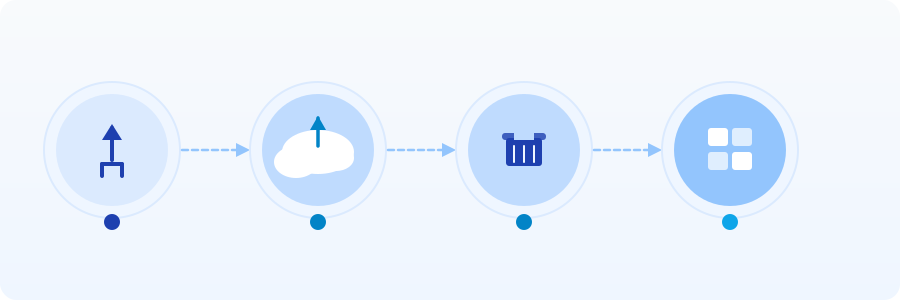
Upload
Store in S3
Auto cleanup
Dashboard
What validation checks
The license must exist, be active, not be expired, and allow the current installation domain. The number of allowed sites depends on the selected plan.